How to Use Clownfish Voice Changer: Complete Beginner Guide
Learn how to download, install, set up, and use Clownfish Voice Changer step by step. This complete beginner guide covers microphone setup, voice effects, Discord configuration, and common troubleshooting tips.
How to Use Clownfish Voice Changer
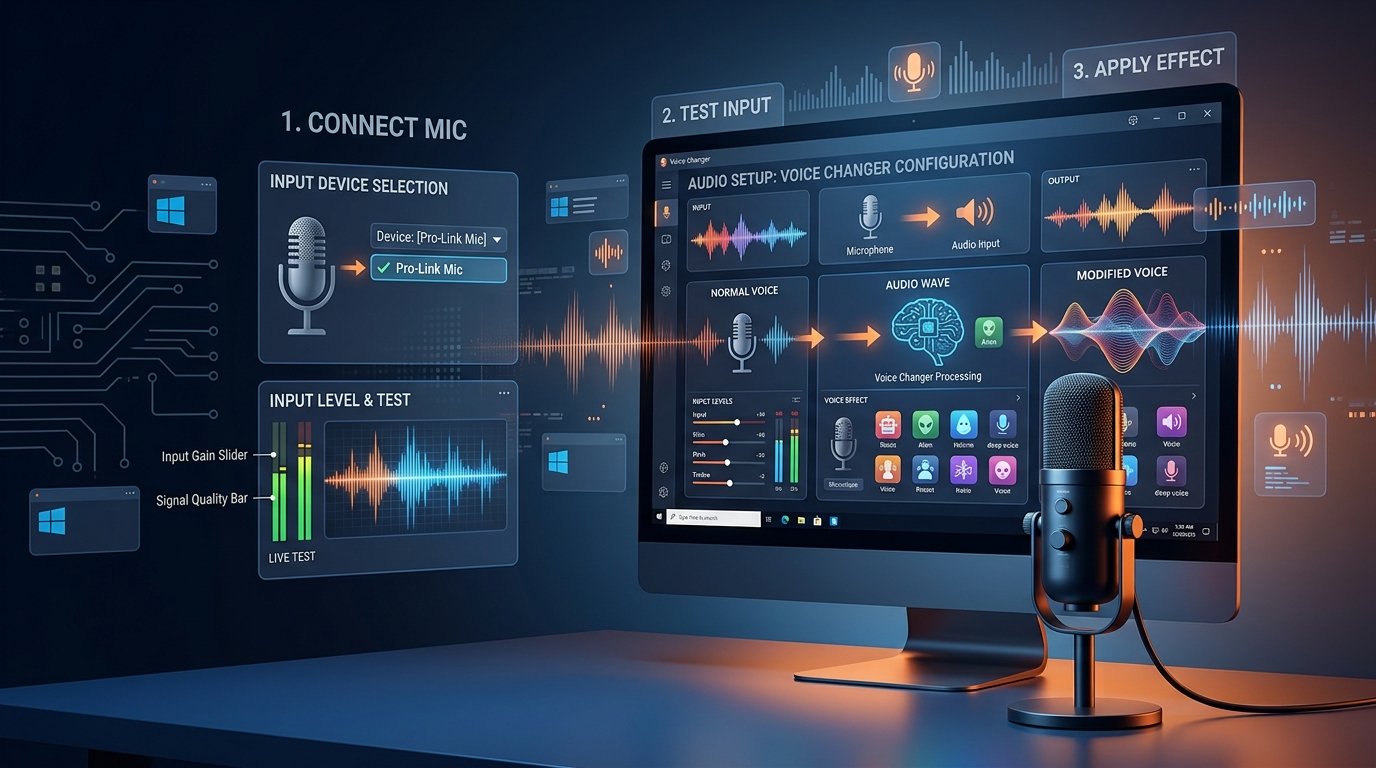
If you are new to Clownfish Voice Changer, setting it up for the first time may seem confusing. You may need to install the software, check your microphone, configure your audio settings, select a voice effect, and then test your modified voice inside the application you want to use.
The good news is that the basic setup process is straightforward when you follow the correct steps. This beginner guide explains how to use Clownfish Voice Changer from installation to microphone configuration and voice testing.
Whether you want to experiment with voice effects, use voice modification during online conversations, or test different audio styles, this guide will help you understand the basic setup process.
In This Guide
What Is Clownfish Voice Changer?
Clownfish Voice Changer is a voice modification tool that works with microphone audio on compatible Windows setups. It allows users to experiment with different voice effects and audio modifications while using their microphone.
Instead of changing a voice after recording an audio file, voice-changing software can be used to modify microphone audio in real time, depending on the software configuration and the application being used.
To learn more about the available resources and tools, you can visit the Clownfish Voice Changer homepage .
What You Need Before Using Clownfish Voice Changer
Before installing and using the software, make sure your computer and audio devices are ready.
- A compatible Windows computer.
- A working microphone.
- Microphone access enabled in Windows.
- Correct audio input settings.
- The required software installed correctly.
Your microphone is the most important part of the setup. If Windows cannot detect your microphone properly, you should solve that issue before testing voice effects.
Step 1: Download Clownfish Voice Changer
The first step is downloading the software and preparing it for installation.
Visit the dedicated download page for the latest download information and available instructions.
After downloading the installation file, locate it in your Downloads folder. Before starting the installation, close unnecessary applications that may currently be using your microphone or audio devices.
Step 2: Install Clownfish Voice Changer
After downloading the installer, open the file and follow the installation instructions displayed on your computer.
- Open the downloaded installation file.
- Follow the instructions provided by the installer.
- Allow the installation process to complete.
- Restart your computer if you are asked to do so.
Restarting your computer can help Windows refresh audio services and recognize changes related to your microphone and audio devices.
If you need additional setup instructions, visit our Clownfish Voice Changer Help Guide .
Step 3: Set Up Your Microphone
Correct microphone configuration is one of the most important parts of learning how to use Clownfish Voice Changer.
Before selecting a voice effect, make sure your microphone works correctly in Windows.
How to Check Your Microphone in Windows
- Open Windows Settings.
- Go to the System section.
- Open Sound settings.
- Find the Input section.
- Select your microphone.
- Speak into the microphone and test the input level.
If Windows detects your voice correctly, your microphone is ready for the next step. If no sound is detected, check your microphone connection, permissions, and audio input device.
Step 4: Open Clownfish Voice Changer
Once the installation is complete and your microphone is working, open Clownfish Voice Changer.
Depending on your installation and Windows configuration, you may access the application through the Start menu, desktop shortcut, or system tray.
Open the available application options and take some time to explore the voice effects and audio-related settings.
Step 5: Choose and Use a Voice Effect
After opening the software, you can explore the available voice effects and select the one you want to test.
Voice effects modify the sound of your microphone audio. Different effects can create different voice styles and audio characteristics.
How to Select a Voice Effect
- Open Clownfish Voice Changer.
- Access the available voice effects.
- Select one voice effect.
- Speak into your microphone.
- Test the modified voice.
It is recommended to test one voice effect at a time. This makes it easier to understand how each effect changes your microphone audio.
How Does Clownfish Voice Changer Work?
Understanding the basic audio process can make troubleshooting easier.
If your voice effect is not working, check each part of this process. First confirm that your microphone works in Windows, then make sure the voice changer is running, and finally check the microphone settings in the application where you want to use your voice.
How to Use Clownfish Voice Changer on Discord
Discord is one of the most common applications where users test microphone and voice settings.
- Open Discord.
- Go to User Settings.
- Open Voice & Video settings.
- Check your selected input device.
- Confirm that Discord detects your microphone.
- Open Clownfish Voice Changer.
- Select a voice effect.
- Test your microphone audio.
If Discord does not detect your microphone correctly, first check your Windows microphone settings. After that, review the selected input device inside Discord.
How to Use Clownfish Voice Changer for Gaming
Many users explore voice-changing software for online gaming and voice chat. Before joining a game, test your microphone and voice effect first.
- Check that your microphone works in Windows.
- Open Clownfish Voice Changer.
- Select your preferred voice effect.
- Launch the game.
- Open the game's audio or voice settings.
- Select the correct microphone input.
- Test your voice chat before playing.
Different games can have different audio settings, so always check the microphone input device inside the game's voice settings.
Clownfish Voice Changer Not Working? Common Problems and Fixes
If Clownfish Voice Changer is not working as expected, the problem may be related to your microphone, Windows audio settings, permissions, or the application you are using.
1. Restart Your Computer
Restarting Windows can refresh audio services and help solve temporary microphone or driver problems.
2. Check Your Microphone
Make sure your microphone works correctly in Windows before testing voice effects.
3. Restart the Voice Changer
Close the application completely and open it again.
4. Check Microphone Permissions
Make sure the applications you want to use have permission to access your microphone.
5. Check the Correct Input Device
If you have multiple microphones connected to your computer, make sure the correct input device is selected.
For more tutorials and troubleshooting guides, visit the Clownfish Voice Changer Blog .
Tips for Better Voice Changing Results
- Use a clear microphone: Better microphone audio can improve voice clarity.
- Reduce background noise: A quieter environment can make your voice easier to understand.
- Use headphones: Headphones may help reduce unwanted audio feedback and echo.
- Test before joining a call: Always test your microphone and selected voice effect first.
- Try one effect at a time: This helps beginners understand how each voice effect changes their audio.
Clownfish Voice Changer Beginner Checklist
- ✓ Download the software.
- ✓ Install Clownfish Voice Changer.
- ✓ Restart your computer if required.
- ✓ Connect and test your microphone.
- ✓ Check Windows microphone settings.
- ✓ Open Clownfish Voice Changer.
- ✓ Select a voice effect.
- ✓ Open your preferred application.
- ✓ Check microphone input settings.
- ✓ Test your voice.
Frequently Asked Questions
How do I use Clownfish Voice Changer?
Install the software, make sure your microphone works correctly, open the voice changer, select a voice effect, and test your microphone audio in the application you want to use.
How do I set up Clownfish Voice Changer?
Download and install the software, configure your microphone in Windows, open the voice changer, and select a voice effect. You can also check our Help Guide for more information.
Why is Clownfish Voice Changer not working?
Common reasons include incorrect microphone settings, audio permissions, selecting the wrong input device, or temporary Windows audio problems.
Can I use Clownfish Voice Changer on Discord?
You can configure Discord's microphone settings and test your voice input. Make sure Discord is using the correct input device.
Where can I download Clownfish Voice Changer?
Visit the Clownfish Voice Changer Download Page for download information.
Ready to Get Started?
Download the software, set up your microphone, and start exploring the available voice effects.
Go to Download PageExplore More Clownfish Voice Changer Resources
Clownfish Voice Changer Home
Explore the main Clownfish Voice Changer website.
Download Clownfish Voice Changer
Find download and installation information.
Help and Setup Guide
Learn more about setup, microphone configuration, and troubleshooting.
More Tutorials and Guides
Explore more Clownfish Voice Changer articles and guides.
Final Thoughts
Learning how to use Clownfish Voice Changer becomes much easier when you follow the setup process step by step. Start by making sure your microphone works correctly, then install the software, configure your audio settings, select a voice effect, and test your voice.
If you experience problems, start with the basics. Check your microphone, confirm Windows can detect your voice, review your selected input device, and then test the software again.
For more tutorials, troubleshooting guides, and helpful resources, visit the Clownfish Voice Changer Blog .