Advanced Real-Time Voice Changer & Audio Processor
Transform your voice seamlessly across Discord, Steam, Skype, Zoom, TeamSpeak, and multiplayer PC games. Installed at the system level so every application using your microphone is instantly enhanced with real-time effects, VST plugins, background music streaming, and text-to-speech.
Why Choose Clownfish Voice Changer?
Engineered for ultra-low latency audio modification with powerful auxiliary tools.
System-Level Integration
Operates directly as a virtual microphone driver. Any software utilizing your default audio capture device captures the modified stream automatically.
VST & Plugin Support
Extend audio capabilities with VST plug-ins, custom soundboards, Push2Talk hotkeys, and Win2Talk integrations for professional audio engineering.
Built-in Music & Sound Player
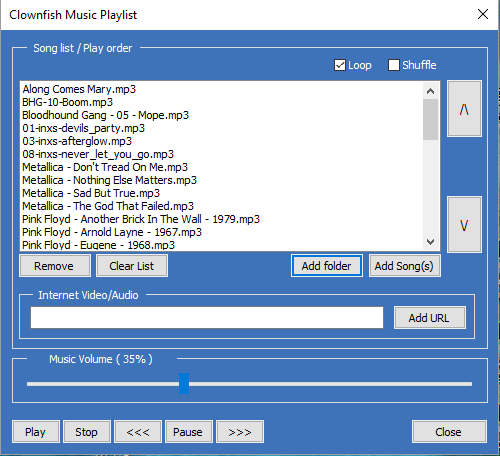
Stream audio files, sound effects, or background music into your active voice channel with dedicated volume sliders, loop, and shuffle options.
System Requirements & Compatibility
Clownfish is engineered for optimal performance across all standard Windows audio architectures.
Windows OS
Windows 10, Windows 11 (32-bit & 64-bit)
Sound Cards
Realtek High Definition, Conexant, IDT, & USB Headsets
Low CPU Usage
< 2% CPU footprint during real-time modulation
VST Architecture
Native support for VST and VST3 third-party plugins
Supported Voice Effects & Pitch Modulations
Quickly toggle presets from your taskbar tray control menu or main application dashboard.
How to Install & Use Clownfish Voice Changer
Follow these visual instructions to set up your microphone, effects, music player, and voice assistant seamlessly.
Run the Setup Wizard
Download the correct installer package from our download center. Launch the setup wizard as shown in the preview, click Next, and proceed through standard installation prompts.
- Clean and lightweight installation package
Compatible with Windows 10 & Windows 11 architectures
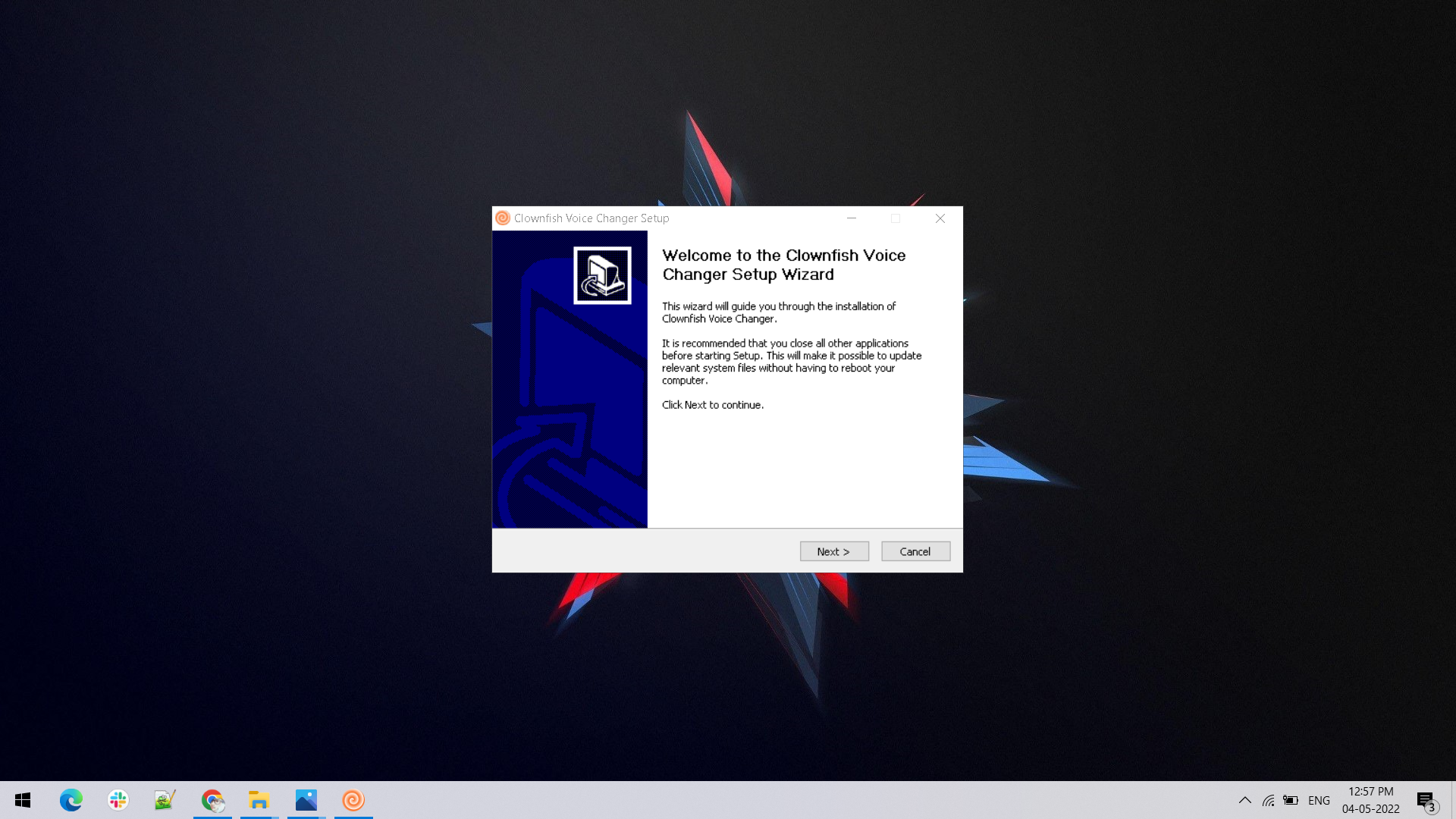
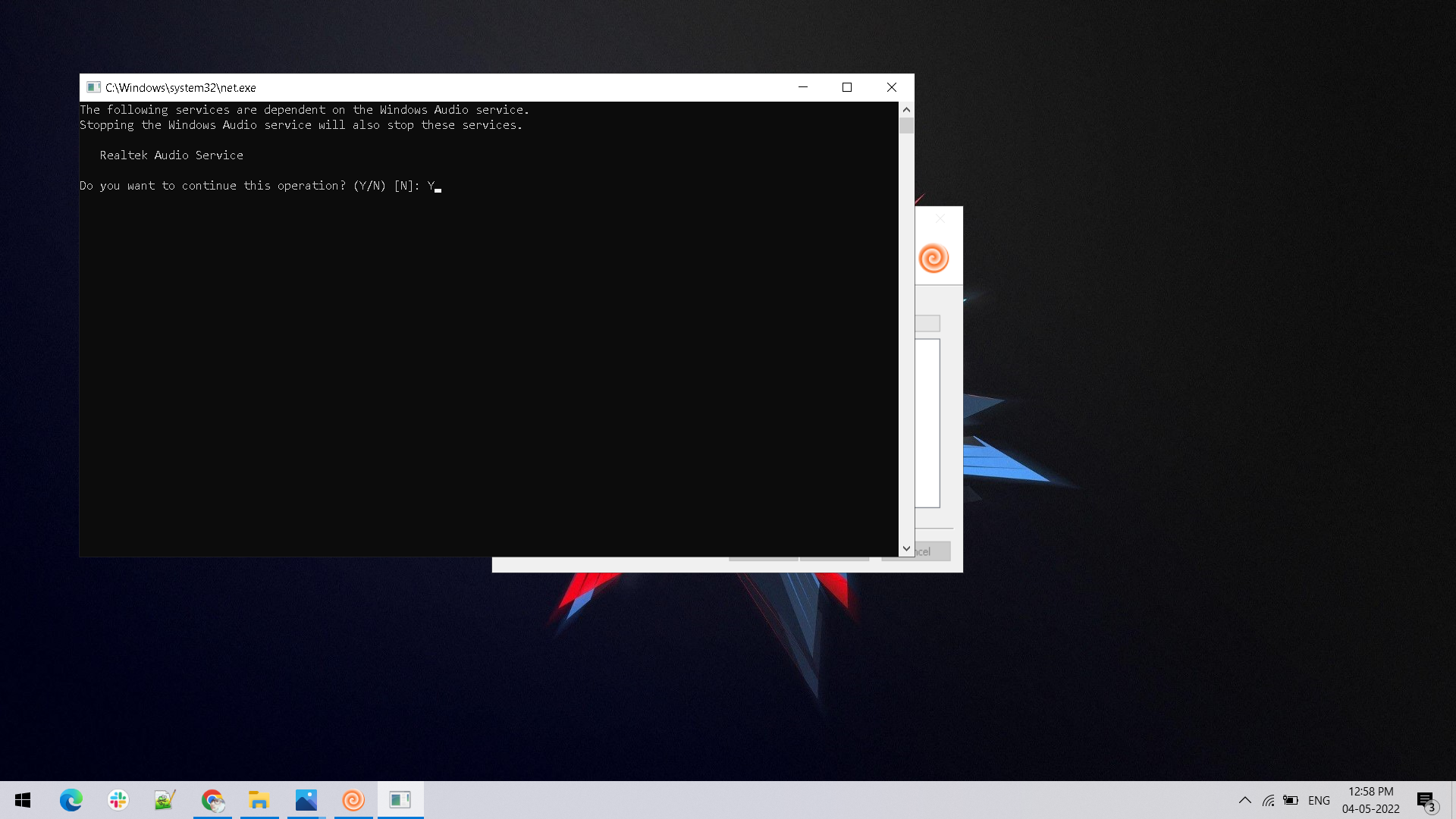
Audio Endpoint Services Configuration
The installer configures necessary Windows audio endpoints. Confirm permissions when prompted by the setup utility to enable real-time microphone hooking and stream manipulation.
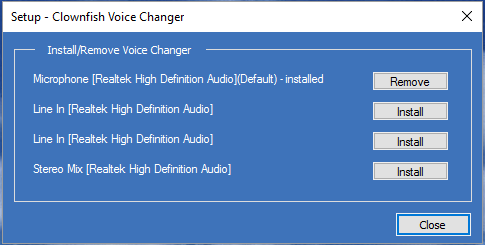
Configure Microphone in Setup
Open the Clownfish Setup utility from your system tray. From here, you can install or remove voice changer hooks for your active recording devices (Realtek Audio, Line In, or Stereo Mix).
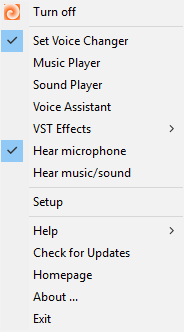
System Tray Control Menu
Right-click the Clownfish icon in your Windows taskbar tray to open the master menu. Quickly toggle the voice changer on/off, launch the Music Player, Sound Player, or test your input.
Select Voice Effects & Pitch
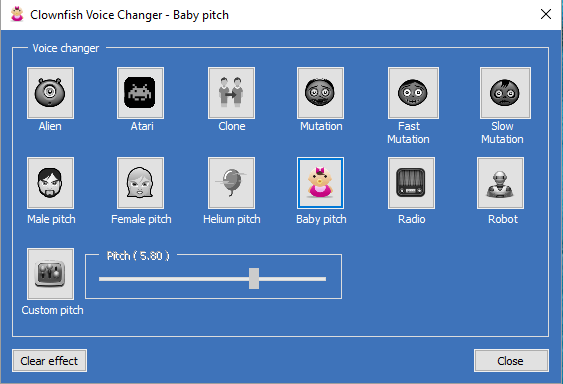
Click 'Set Voice Changer' to open the effect selector. Choose presets or fine-tune pitch slider levels manually for precise voice modulation.
Music Playlist & Audio Streaming
Stream background tracks or sound clips directly into your microphone stream using the built-in Music Player with full playlist control, loop, and volume adjustment.
Hotkeys & Sound Board
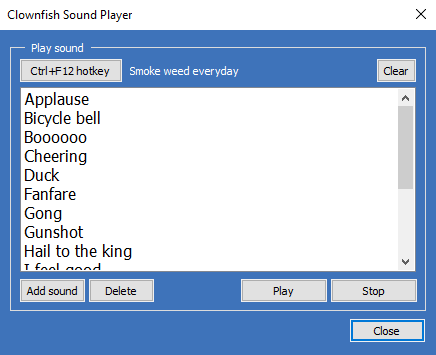
Play sound effects instantly during online calls or gaming sessions using customized hotkeys assigned in the Sound Player utility.
Text-to-Speech & Voice Assistant
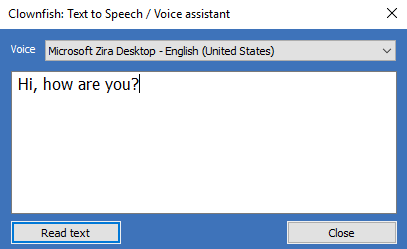
Type text messages into the Voice Assistant and let synthesized text-to-speech engines speak automatically in your chat channels.
Frequently Asked Questions
Got questions about Clownfish Voice Changer? Find quick answers below.
Is Clownfish Voice Changer free to download?
Yes, Clownfish Voice Changer is 100% free and open for personal use across all supported Windows platforms.
Which applications are supported?
Because it operates at the system level, any application utilizing your microphone (Discord, Zoom, Skype, Steam, Teamspeak, etc.) is supported.
How do I fix microphone detection issues?
Open the Clownfish Setup menu from your system tray and ensure your default recording device (e.g., Realtek Microphone) has the voice changer driver installed.