Master User Manual
Complete, detailed instructions for setting up, configuring, and utilizing all features of Clownfish Voice Changer V2.05.
Run the Setup Wizard
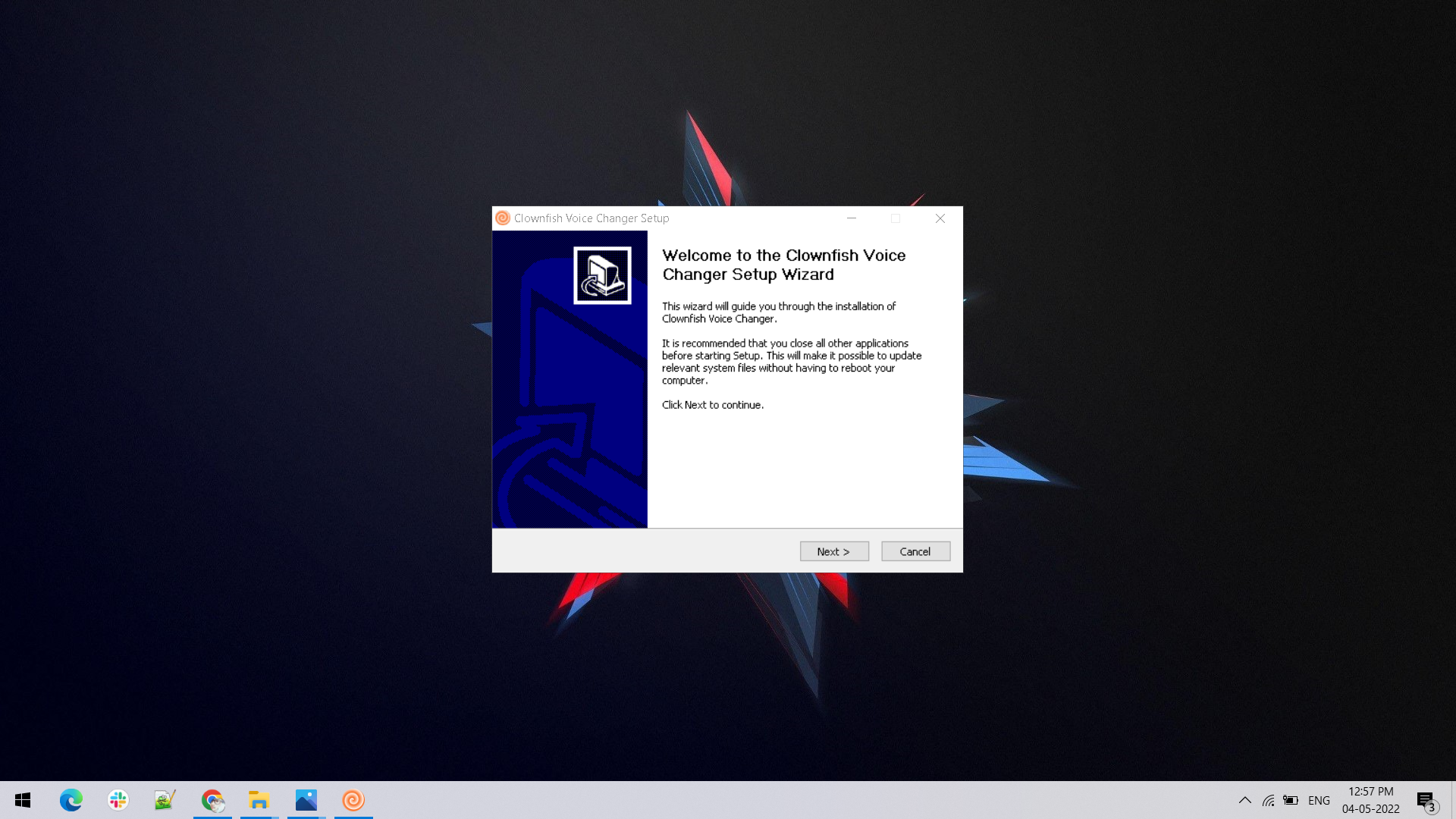
Download the correct installer package from our download center. Launch the setup wizard as shown in the preview, click Next, and proceed through standard installation prompts.
- Clean and lightweight installation package
- Compatible with Windows 10 & Windows 11 architectures
Audio Endpoint Services Configuration
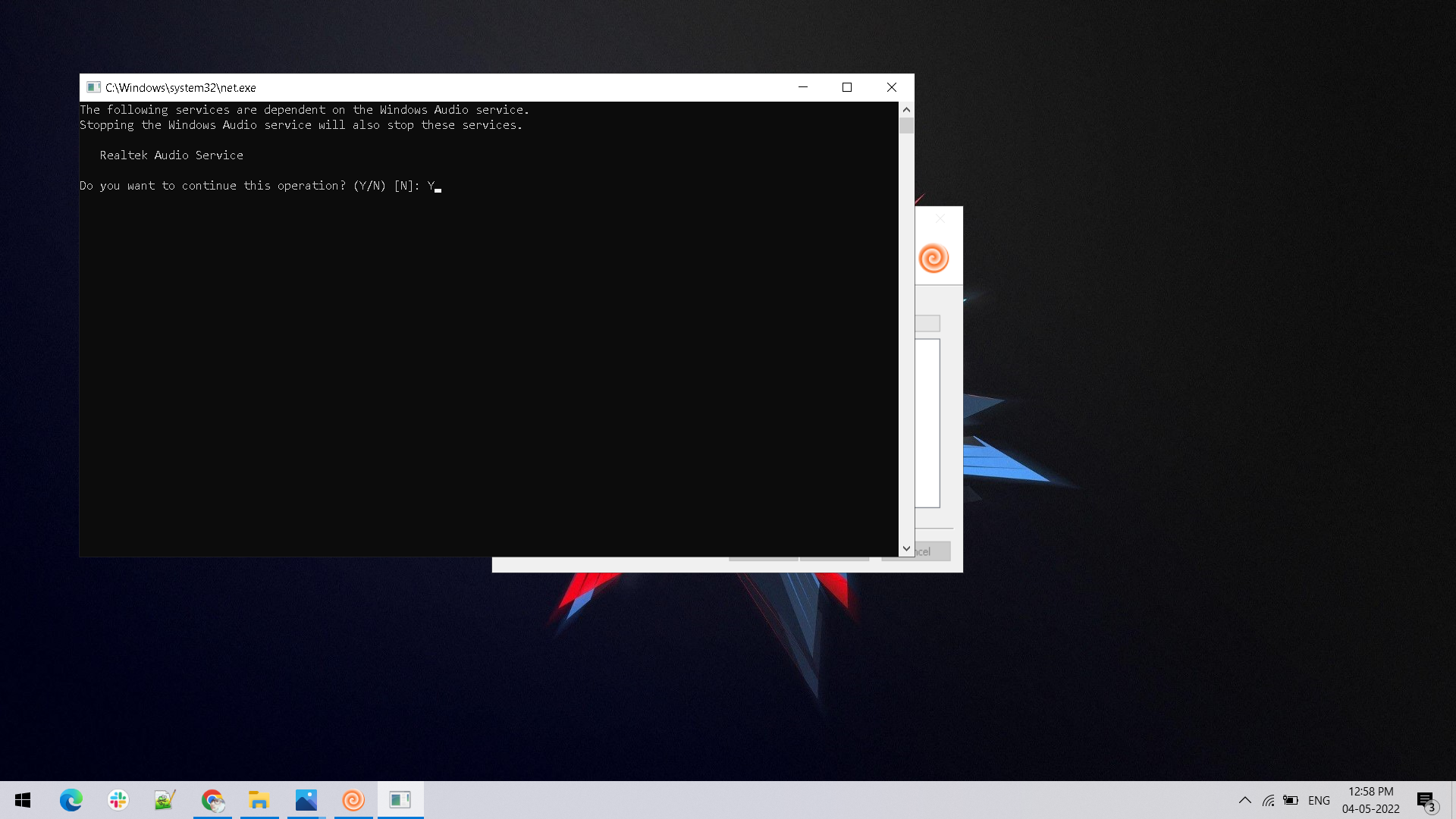
The installer configures necessary Windows audio endpoints. Confirm permissions when prompted by the setup utility to enable real-time microphone hooking and stream manipulation.
This ensures your microphone inputs are correctly routed through the virtual audio filter without distortion.
Configure Microphone in Setup
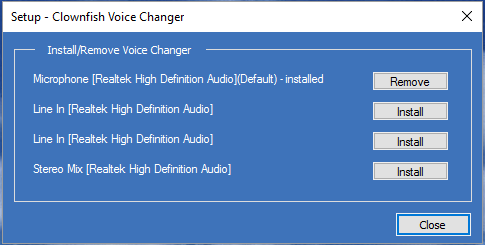
Open the Clownfish Setup utility from your system tray. From here, you can install or remove voice changer hooks for your active recording devices (Realtek Audio, Line In, or Stereo Mix).
System Tray Control Menu
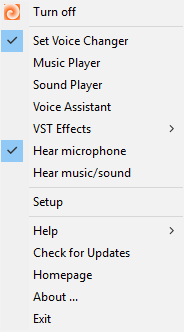
Right-click the Clownfish icon in your Windows taskbar tray to open the master menu. Quickly toggle the voice changer on/off, launch the Music Player, Sound Player, or test your input.
- • Turn off / Turn on master switch
- • Access VST Effects and Voice Assistant
Select Voice Effects & Pitch
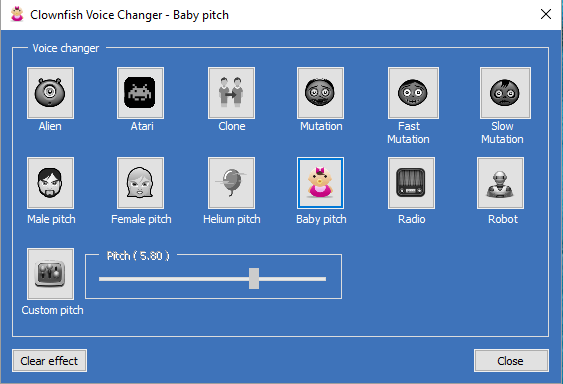
Click 'Set Voice Changer' to open the effect selector. Choose presets (Alien, Robot, Baby Pitch, Helium, etc.) or fine-tune pitch slider levels manually for precise voice modulation.
Music Playlist & Audio Streaming
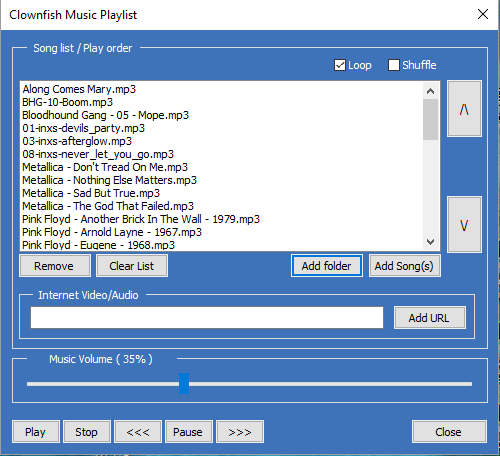
Stream background tracks or sound clips directly into your microphone stream using the built-in Music Player with full playlist control, loop, and volume adjustment.
Hotkeys & Sound Board
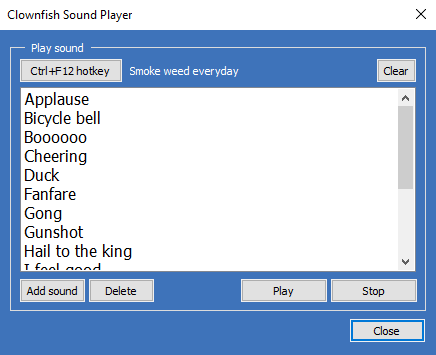
Play sound effects instantly during online calls or gaming sessions using customized hotkeys assigned in the Sound Player utility.
Text-to-Speech & Voice Assistant
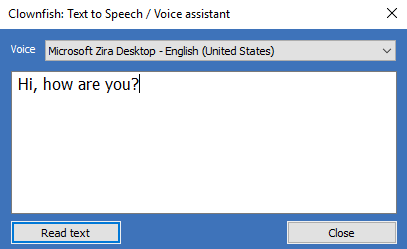
Type text messages into the Voice Assistant and let synthesized text-to-speech engines speak automatically in your chat channels.