Clownfish Voice Changer Not Working? How to Fix Common Problems
Is Clownfish Voice Changer not working properly on your computer? This complete troubleshooting guide explains how to fix common microphone, audio, installation, Windows, and voice effect problems step by step.
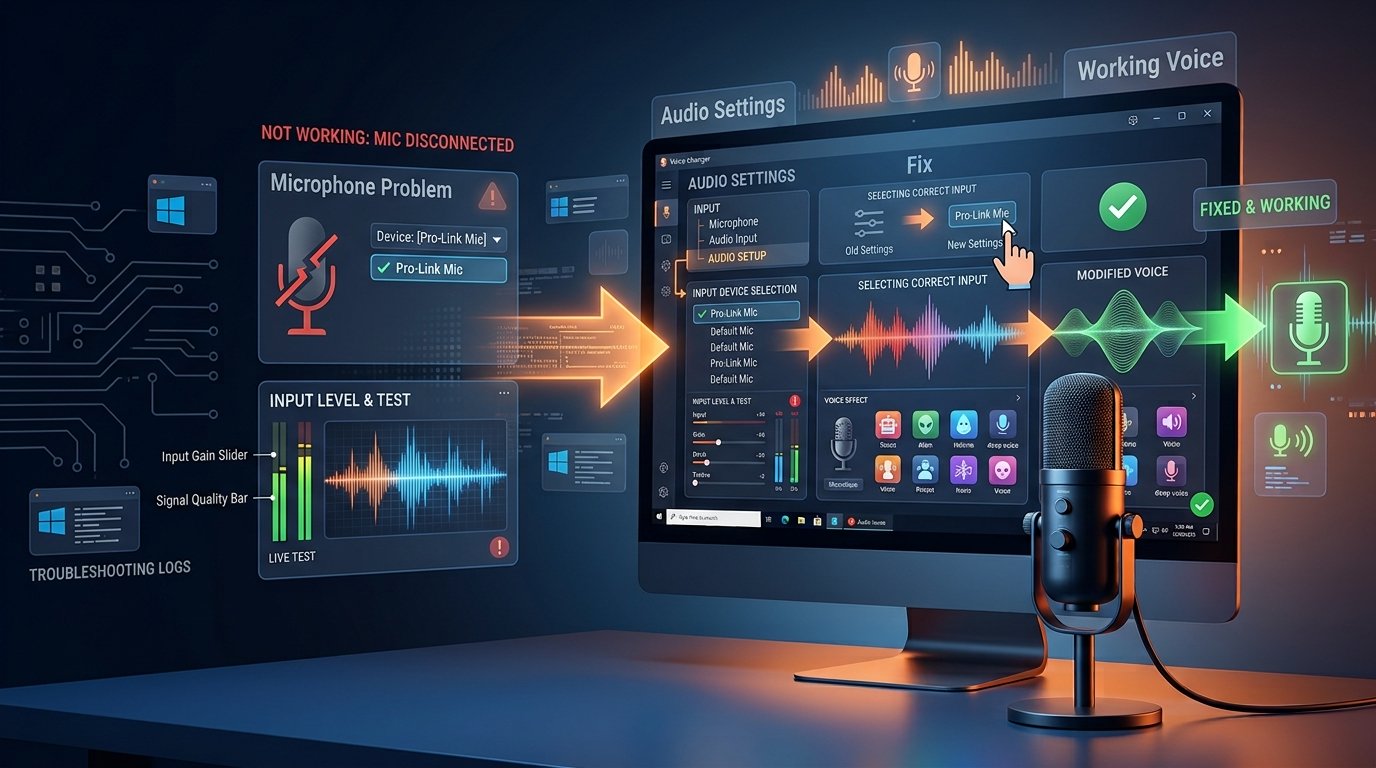
Why Is Clownfish Voice Changer Not Working?
When Clownfish Voice Changer is not working, the problem is usually related to microphone settings, Windows audio configuration, installation issues, permissions, drivers, or the application where you are trying to use your modified voice.
The good news is that many common problems can be solved without complicated technical steps. Before reinstalling anything, it is important to check the basic audio setup first.
In this guide, you will learn how to troubleshoot common Clownfish Voice Changer problems step by step. Start with the simple checks first, then move to the more advanced fixes if the problem continues.
If you are new to the software, you may also want to read our complete How to Use Clownfish Voice Changer Beginner Guide before trying the troubleshooting steps below.
Quick Answer: How Do I Fix Clownfish Voice Changer?
Start by restarting your computer and checking whether your microphone works correctly in Windows. Then make sure Clownfish Voice Changer is installed correctly, your microphone is selected as the correct input device, and the application where you want to use the voice effect has microphone permission.
If the issue continues, restart the voice changer, review Windows sound settings, check microphone permissions, and test the software again.
In This Troubleshooting Guide
- Quick Checks Before Troubleshooting
- Fix 1: Restart Your Computer
- Fix 2: Check Your Microphone
- Fix 3: Select the Correct Input Device
- Fix 4: Check Microphone Permissions
- Fix 5: Restart Clownfish Voice Changer
- Fix 6: Check Windows Audio Settings
- Fixing Clownfish Voice Changer on Discord
- Fix 7: Reinstall the Software
- Advanced Troubleshooting Tips
- Frequently Asked Questions
Quick Checks Before Troubleshooting
Before changing advanced settings, check the basics. Many voice changer problems happen because the microphone is disconnected, muted, disabled, or selected incorrectly.
- Make sure your microphone is connected.
- Check whether your microphone works in Windows.
- Restart Clownfish Voice Changer.
- Check the correct input device.
- Make sure microphone permissions are enabled.
- Restart your computer.
Fix 1: Restart Your Computer
Restarting your computer may sound simple, but it can solve many temporary audio and microphone problems.
Windows uses background audio services and drivers to manage microphones, speakers, and other sound devices. Sometimes these services may not refresh properly after installing software or connecting a new audio device.
Restart your computer, then test your microphone again before opening Clownfish Voice Changer.
Fix 2: Check Whether Your Microphone Is Working
If your microphone does not work in Windows, the voice changer cannot process your voice correctly. This is why checking the microphone should always be one of the first troubleshooting steps.
How to Test Your Microphone
- Open Windows Settings.
- Go to System.
- Open Sound settings.
- Find the Input section.
- Select your microphone.
- Speak into your microphone.
- Check whether Windows detects your voice.
If Windows does not detect your microphone, focus on solving that problem first. Check your microphone cable, USB connection, headset connection, and microphone privacy permissions.
Fix 3: Make Sure the Correct Input Device Is Selected
Many users have multiple audio devices connected to their computers. For example, you may have a laptop microphone, USB microphone, webcam microphone, headset microphone, or Bluetooth headset.
If Windows or another application is using the wrong microphone, your voice changer may not receive the audio you expect.
What You Should Check
- Check your default Windows microphone.
- Check the microphone selected inside your application.
- Disconnect unused microphones temporarily.
- Test one microphone at a time.
Selecting the correct microphone is especially important if you use a USB headset or external microphone.
Fix 4: Check Microphone Permissions
Windows privacy settings can control which applications are allowed to access your microphone.
If microphone access is disabled, voice chat applications may not receive your audio correctly.
Check These Settings
- Open Windows Settings.
- Go to Privacy settings.
- Find Microphone permissions.
- Make sure microphone access is enabled.
- Check whether the application you want to use can access your microphone.
After changing microphone permissions, close and reopen the affected application before testing again.
Fix 5: Restart Clownfish Voice Changer
Sometimes the software may need to be restarted after changing microphone settings or connecting a new audio device.
- Close Clownfish Voice Changer.
- Check that it is no longer running in the background.
- Open the software again.
- Test your microphone.
- Select a voice effect and test the result.
If you changed audio settings while the voice changer was already running, restarting the software can help refresh the connection with your audio devices.
Fix 6: Check Windows Audio Settings
Incorrect Windows sound settings can cause microphone and voice changer problems.
Open your Windows sound settings and check both your input and output devices. Make sure your microphone is enabled and not muted.
Important Audio Settings to Check
- Default microphone input.
- Microphone volume level.
- Microphone mute status.
- Correct headset or microphone connection.
- Audio device availability.
- Other software using the microphone.
After making changes, test your microphone again before opening the voice changer.
Clownfish Voice Effects Are Not Changing My Voice
If your microphone works but your voice does not sound different, start by checking whether the selected voice effect is active.
Test one effect at a time and listen carefully to the microphone output. If you are testing inside another application, confirm that the application is receiving the correct microphone audio.
Try This Checklist
- ✓ Confirm the voice changer is running.
- ✓ Select a voice effect.
- ✓ Check that your microphone works.
- ✓ Restart the application where you are testing the voice.
- ✓ Check the selected input device.
- ✓ Test your voice again.
Clownfish Voice Changer Not Working on Discord
If your voice works in Windows but does not work correctly on Discord, the problem may be related to Discord's input device or voice settings.
How to Check Discord Voice Settings
- Open Discord.
- Go to User Settings.
- Open Voice & Video.
- Check the Input Device.
- Select the correct microphone.
- Use Discord's microphone test if available.
- Restart Discord after changing audio settings.
Discord may continue using a previously selected microphone until the application is restarted, so restarting Discord after changing audio settings can be useful.
Clownfish Voice Changer Not Working in Games
If the voice changer works in one application but not in a game, check the game's microphone settings.
Many games allow players to manually select their voice input device. Make sure the correct microphone is selected.
- Open the game's settings.
- Find Audio or Voice Chat settings.
- Check the selected microphone input.
- Test your microphone.
- Restart the game if necessary.
Testing your microphone before joining an online game can help identify problems before entering voice chat.
Fix 7: Reinstall Clownfish Voice Changer
If basic troubleshooting does not solve the problem, reinstalling the software may help resolve installation or configuration issues.
Recommended Reinstallation Steps
- Close Clownfish Voice Changer.
- Restart your computer if necessary.
- Remove the existing installation.
- Restart your computer.
- Download the installer again from the appropriate download source.
- Install the software.
- Restart your computer if requested.
- Test your microphone again.
After reinstalling, check your microphone before testing voice effects. This makes it easier to determine whether the problem is related to the microphone or the software configuration.
Check Your Audio Drivers
Audio drivers help Windows communicate with your microphone and sound devices. If your microphone suddenly stops working or disappears from Windows, the audio driver may be one of the areas worth checking.
Before changing drivers, confirm that your microphone works correctly with another application. If the microphone fails everywhere, the problem is more likely related to Windows, the microphone hardware, or its driver.
Restarting your computer and reconnecting the microphone should always be tried before making advanced driver changes.
Advanced Troubleshooting Tips
If you have tried the basic fixes and Clownfish Voice Changer is still not working, use the following troubleshooting process.
Disconnect Other Audio Devices
Disconnect unused microphones, headsets, webcams, and other audio devices temporarily. This can make it easier to identify which device Windows is using.
Close Other Voice Applications
Close other applications that may be using or modifying your microphone. Testing one voice-related application at a time can help identify software conflicts.
Test With Another Application
Test your microphone in another application to determine whether the problem is limited to one program or affects your entire computer.
Change One Setting at a Time
Avoid changing many settings at once. Change one setting, test the microphone, and then continue to the next troubleshooting step.
Best Troubleshooting Order
Follow this order if you do not know where to start:
- Restart your computer.
- Check your microphone in Windows.
- Check microphone permissions.
- Select the correct input device.
- Restart Clownfish Voice Changer.
- Test a voice effect.
- Restart the application where you want to use the voice.
- Check the application's microphone settings.
- Disconnect unused audio devices.
- Reinstall the software if necessary.
New to Clownfish Voice Changer?
If you are installing the software for the first time, read our complete beginner guide to learn how to set up your microphone and start using voice effects.
Read the Complete Beginner GuideFrequently Asked Questions
Why is my Clownfish Voice Changer not working?
Common causes include microphone problems, incorrect input device settings, microphone permissions, installation issues, or incorrect audio settings in the application you are using.
Why is my microphone not working with Clownfish?
First check whether your microphone works correctly in Windows. If Windows cannot detect your voice, solve the microphone problem before troubleshooting the voice changer.
How do I fix Clownfish Voice Changer on Discord?
Check Discord Voice & Video settings and confirm that the correct microphone input device is selected. Restart Discord after changing audio settings.
Should I reinstall Clownfish Voice Changer?
Reinstallation can be useful if basic microphone, audio, and permission checks do not solve the problem.
Where can I find more Clownfish Voice Changer help?
Visit our Help Guide and Blog for additional tutorials and troubleshooting resources.
Still Need Help?
Explore our Help Guide and additional tutorials for more information about microphone setup, voice effects, installation, and troubleshooting.
Explore More Clownfish Voice Changer Resources
Final Thoughts
If Clownfish Voice Changer is not working, start with the basics. Check your microphone, confirm that Windows detects your voice, select the correct input device, and make sure microphone permissions are enabled.
If the problem continues, restart the voice changer and the application you are using. Disconnect unused audio devices and test your microphone step by step.
Reinstalling the software should usually be considered after basic troubleshooting steps have been tested.
For more tutorials and helpful information, visit the Clownfish Voice Changer Blog .